LauderBuild
LauderBuild is the City of Fort Lauderdale's Accela Citizen Access Portal (ACA). It's where our neighbors, businesses, and the general public are able to access government services online, 24/7. The LauderBuild Wizard makes submitting online easier than ever. If you're not sure where to start, just click the button to guide you to the right place.
Anyone may use LauderBuild to search and view record status and general information or pay fees and fines online. However, to gain access to the full range of services provided, we recommend Registering for an Account. The process is free and easy.
Registered User Features
- Apply for building, right of way/Engineering and Planning (UDP) permits
- Track your permits and other City accounts
- Submit online Walk-Thru permit applications (NOTE: You may create Walk-Thru applications at any time on LauderBuild, however they will only be processed the next business day Monday - Friday between 8:00 am - 9:30 am)
- Register as a new licensed professional (LP) / contractor with the City and keep your documentation up to date
- Apply for and renew business tax receipts
- Submit and monitor code complaints
- Register rental property, vacant property or register as a landlord
The LauderBuild Plan Room (LPR)
The City processes permit applications digitally and all new submissions can be submitted online through our Citizen's Portal, LauderBuild. Neighbors can upload documents and manage the review process from the convenience of their home or office. View for details, guides and tutorials.
LauderBuild FAQ
Here Neighbors can view answers to frequently asked LauderBuild questions and download a user guide.
LauderBuild Plan Room (LPR)
The City of Fort Lauderdale is always working on ways to make our services more efficient and, as part of that mission, offers digital plan review with the LauderBuild Plan Room (LPR). Neighbors are able to upload their documents and manage the review process from the convenience of their home or office.
The digital plan and review process provides greater transparency for customers with user-friendly, enhanced commenting and tracking capabilities. Project collaborators will have real-time, remote access to the status of submittals and reviews allowing more flexibility with their time.
Full online application submission, digital storage and archiving of data leads to eliminating paper bulk to become more environmentally protective, and enable ease of retrieval. We hope our Neighbors will take full advantage of these features.
Key Features
- Submit plans, specifications and other supporting documents at your convenience, 24/7/365.
- Track the progress of projects and respond to comments.
- View notes documented by each city reviewer.
- Easily submit revisions and additional documents.
- Receive approved, stamped plans once the fees are paid.
Minimum Submission Requirements
Following are the minimum requirements in order to submit applications through LauderBuild:
- LauderBuild Citizen’s Access Account
- Desktop Computer (application and document submission is not supported on mobile devices)
- Current Version of Google Chrome or Microsoft Edge Browser (please ensure all pop-up blockers are turned off)
Application and document submission is not supported on mobile devices and Chrome or Edge are the recommended browsers. While submission might work outside of these requirements, any issues that occur during submission will not be investigated if these requirements have not been met first.
Prepare Plans & Supporting Documents
In order to avoid delays in processing, we recommended uploading all application documents (plans and supporting documents) at the time of application submittal. Do not combine any supporting documents; they must be uploaded separately. Once the application package has been submitted for review Neighbors will not be able to upload additional documents without permission from City staff. This prevents any confusion once the application review has started. Additional documents may be uploaded after the initial application intake review or if a request is made to add a missing document. There are a few required standards for best uploading performance and plan review results. Please follow these guidelines in your document design to ensure correct processing in the LauderBuild Plan Room.
Professional Digital Drawing and Document File Standards
These are the document standards that are required for best uploading performance. Please follow these guidelines in your document design to ensure correct processing in the LauderBuild Plan Room (LPR). Professional drawings, plans and other supporting documents must be submitted with the following file standards.
General Standards (including Supporting Documents)
- All files must be submitted as PDF files
- Do not submit portfolio PDF files
- Do not use encrypted or password-protected files.
- All documents must have a minimum resolution of 300 DPI.
- The maximum file size is 200MB.
- All layers must be flattened (including seals, signatures, notations).
- Documents may be submitted either as individual files or multiple-page PDF files (e.g., a full plan set, a traffic study, etc.) and should be named accordingly.
- If submitting multiple (more than one) pages in a single PDF file, you must include a table of contents (TOC). Include sheet titles, page labels, page numbers, bookmarks within the TOC. (Tip: include “Create bookmarks” setting in AutoCAD when exporting/publishing to the PDF index page.)
- Do not combine supporting documents in the same PDF file with any plan sheets - plans and supporting documents must be uploaded as separate files.
- All items must be in the correct orientation so that the top of the page appears at the top of the computer screen when opened. Pages must not require rotation in order to be read.
- All submitted documents must have the required file name and numbering convention. Files that are not named correctly will be rejected. See LPR File Naming Convention Standards(PDF, 341KB) for more details.
- When uploading files, make sure to select the correct corresponding document category from the dropdown list to avoid validation issues or rejection.
Signed and Sealed Attachments (Plans and Surveys) Plans
- All plans must be “digitally signed and sealed” (refer to the DSD Digital Signature Policy(PDF, 427KB)).
- Plan sheets may be submitted as separate PDF files as long as each file is digitally signed and sealed.
- Documents must have a 6”w x 2”h horizontally orientated space (e.g., like a business card) reserved in the top left corner for the City’s digital approval stamp.
- Ensure that sheet numbers are unique and consistent for each version of submitted plan sheets.
- For scanned drawings, where only a scanned image can be used, ensure the resolution is 300 DPI or higher. Documents must be legible on a computer screen and/or printed.
- Plans must be drawn to scale (e.g., 1/4" = 1’, 1/8” = 1’ or 1:10) according to application requirements.
- Plans must be sized no larger than 24” x 36”.
- Any annotations in the PDF will be removed during the submission process.
- When submitting corrections/revisions, do not resubmit the entire plan set. Only upload the sheets containing changes from the previous submission.
Please make sure any page numbers are the same as the original sheet it is replacing.
Urban Design & Planning Development Review Submittals (DRC)
DRC Submittals should follow the guidelines as listed above with the following exceptions:
- Plan sets are not required to be “digitally signed and sealed” for development review until final DRC. At that time, the Case Planner will provide instructions to finalize your submission.
- Plan sets must be submitted as a single PDF file to the "Support Documents (No Plans)" Category.
- When addressing DRC comments with revised plan sets, resubmit the entire plan set as a single PDF file and follow the file naming convention (as in the initial submission).
Guides, Tutorials & Assistance
Having difficulties uploading plans, responding to comments or receiving status alerts? If you need assistance, this is a great place to start.
LauderBuild FAQ
LauderBuild FAQ
Neighbors can view help, tips and download self-service materials for LauderBuild, including the LauderBuild User Guide(PDF, 9MB). We recommend adding this page to your favorites.
What is LauderBuild?
LauderBuild is the City of Fort Lauderdale's new Accela Citizen Access (ACA) portal where our Neighbors, businesses, and visitors can access government services online, 24 hours a day, 7 days a week!
Need to get a building permit? Want to register your alarm system? Looking to apply for a special event permit? Need to apply for and pay your business taxes? Want to report garbage or debris on a vacant lot? Or right-of-way obstructions? Now you don't have to make a trip to City Hall and wait in lines. Save time by making your submissions online at your convenience!
Visit the LauderBuild website to get started today!
How do I search for records on LauderBuild?
LauderBuild refers to items as Records. A record may be a building permit, an application, a license, code case, event permit, alarm account, business tax application, etc. Anyone may perform a basic record search without creating an account, but certain information will only be available to the record owner.
You can perform a Module (Department) search by clicking Search and selecting the Module or you can do a global search and enter your search criteria in the Global Search field. When doing a search on LauderBuild, all search criteria entered must match the record data exactly, so in a module search, a broader search often works best. If you do not get results from a search, try the following tips:
- Ensure all of the search information is entered correctly.
- For Address searches try entering only the Street Number and Street Name (you may use "%" as a wildcard in the Street Name field).
- For Owner searches try entering a partial name with "%" as a wildcard in front and/or after.
- If entering the full record number, ensure any dashes are included (e.g., BLD-ROOF-0000001).
- Try expanding your search further by doing a partial search. E.g., if searching for "MEC-RES-19030028" or "PM-19030028", try "%19030028".
To search for records that were created prior to October 4, 2019 please use the following prefixes before the old record number:
- Alarm Billing prefix your record number with "AB-" (e.g., AB-10000000)
- Business Tax prefix your record number with "BL-" (e.g., BL-10000000)
- Enforcement prefix your record number, as applicable: Code - "CE" (e.g., CE10000000), Violation - "VIO-CE" (e.g., VIO-CE10000000), Vacation Rental - "VRR-" (e.g., VRR-10000000)
- Fire Safety prefix your record number with "FS-" (e.g., FS-10000000)
- Permit prefix your record number with "PM-" (e.g., PM-10000000)
- Planning prefix your record number with "PL-" (e.g., PL-100000)


Do I have to register for an account?
Unregistered users can use LauderBuild to search and view records and pay fees. Registered users will have additional access to apply for building and event permits, schedule inspections, register LP licenses and more.
Creating an account is free and easy. Visit LauderBuild, click Register for an account and follow the prompts.
How do I apply for a permit online?
You can apply for permits by visiting LauderBuild and signing in or registering an account. Then select Apply > Permits/ Engineering (ROW) to create your permit application.
As of January 1, 2024, all permit applications and any related submissions must be done through LauderBuild and will go through the LPR digital review process. We strongly recommend visiting the LauderBuild Plan Room (LPR) page for requirements, preparations and tutorials.
Why am I having trouble finding my address when creating an application?
If there is too much information entered and any piece of that information is incorrect, LauderBuild will not be able to find the property. Try entering only the Street Number and Street Name or try entering the first three or four letters of the Street Name or using"%" as a wildcard, then searching. The less information you put into the system, the better results you will get. If there are multiple options for the information you enter, LauderBuild will give you those options to choose from.
How do I download or upload attachments and documents on LauderBuild?
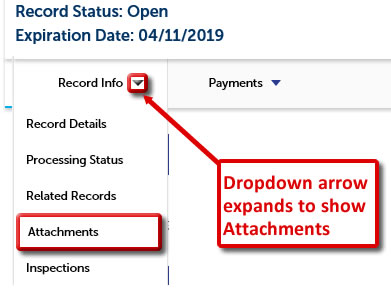
Neighbors may upload or download any documents or files that are pertinent to the application or record at any time. Simply log in to your LauderBuild account, search for the record number and select Record Info > Attachments.
Note: You must be logged in to view, download or upload documents and attachments. Upload files must be less than 250 MB.

LauderBuild FAQ - How-To: Attachments
 LauderBuild FAQ - How-To: Attachments(PDF, 1MB)
How do I check my application status? Or view comments and requests for corrections?
Neighbors can visit LauderBuild to check the processing status details to monitor progress and see any comments or corrections requests on an record at any time. The steps will be a little different for permit records depending on whether the application is undergoing the digital or paper plan review process.
View Processing Status and Comments in the LauderBuild Plan Room (LPR)
In order to be able to access the LauderBuild Plan Room (LPR) you must have a LauderBuild account AND your LauderBuild account contact must be a contact on the permit record. Please contact the Permitting team if you need access to a record and you cannot see the LPR.
Log in to your LauderBuild account, search for the record number in the Global Search (please ensure you enter the entire correct number, including any letters and dashes) and click the Plan Room tab.
On the LPR Summary page you can see at-a-glance, if there are Issues, Conditions or Notes and then you can click on the respective tabs for more details. Please view the Reviewing Issues, Conditions and Notes tutorial for more details.


View Record Processing Status and Comments – Paper Processing
Search for the record number in the Global Search; please ensure you enter the entire correct number, including any letters and dashes. If you do not have a record number you may use the Module Search to search by address.
Then click the dropdown arrow next to Record Info and select Processing Status. The Processing Status page displays the full business processes of the record. The icons show the process status and you can expand the arrows and plus signs to see more details. Every place there’s an arrow or + sign, it expands with more info, such as comments. We recommend expanding all of the items to ensure you have all the details.
Please note that the steps in the business process will differ based on record type and that green Checkmarks only mean that the task is Completed. It does not designate whether that task has been accepted, approved, passed, etc. Always expand the details for more information.

LauderBuild FAQ - How-To: View Record Details
LauderBuild FAQ - How-To: View Record Details(PDF, 2MB)
Can I start work if I entered my permit online?
You may not start work until after your permit is issued. If you applied for your permit online, you will receive an email notification once your permit is issued or you can check the status at any time in LauderBuild.
How do I view or pay fees for permits, business tax and other records?
You can visit LauderBuild to view or pay fees and balances, no login or account is needed. Just search for the record number, then click the dropdown arrow next to Payments and select Fees to see any assessed items. Click Pay Fees to add to the cart and checkout.

How do I schedule an inspection?
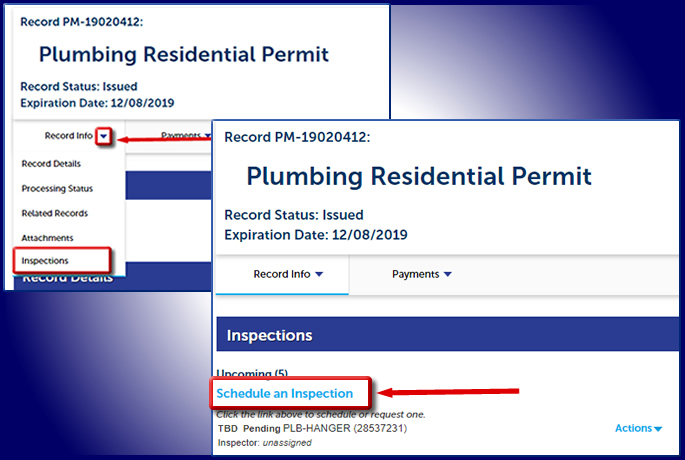
Neighbors and other users may manage inspections using LauderBuild. Any user may view inspection status and details, Log in to your LauderBuild account and click on My Records or do a search for the record number. To schedule and manage inspections, click the dropdown arrow next to Record Info and select Inspections.
You may also call Customer Service at 954-828-6520, option 1, Monday to Friday from 8:00am - 3:30pm.
Please note the following:
- It is not necessary to be logged in as a registered LauderBuild user and be a Contact or Delegate on the record in order to schedule inspections online at this time. However, this policy is subject to change at any time.
- Inspection requests will be scheduled based on availability and inspection times can not be scheduled nor guaranteed. If you would like to request a more specific window, please contact the assigned Inspector.
To Schedule an Inspection Online
- From your record, click the arrow next to Record Info and select Inspections.
- Click on Schedule an Inspection.
- Select inspection type from list of options and click Continue.
- Select an appointment date by clicking a day on the calendar, then select “All Day” and click Continue.
- Verify location and contact and click Continue and Finish.
How do I submit a Landlord Registration application?
Residential property owners with rental properties in the City of Fort Lauderdale are required to register with the City and may submit a Landlord Registration application online at LauderBuild. Simply, log in to your LauderBuild account, select Apply, then Community and Compliance. Accept the terms, select the desired application and follow the steps to complete your application. Click the guide linked below for more details.
Neighbors may contact Community Enhancement and Compliance Customer Service at propertyregistry@fortlauderdale.gov for assistance and questions about the Landlord Registration policies and procedures.
Notes: This registry is not for vacation rentals or owner-occupied residential dwelling units. If your contact information is exempt from public disclosure, please provide other contact information for a responsible party that the City may use to contact you.
LauderBuild FAQ - How-To: Landlord Registration
LauderBuild FAQ - How-To: Landlord Registration(PDF, 1MB)
How do I submit a Vacation Rental Certificate application?
Log in to LauderBuild and select Apply, then Community and Compliance. Agree to the Terms of Use, then search for or select the Vacation Rental Registry application to start your submission. You may also visit the Vacation Rental Program page for more information.
How do I register as a new Licensed Professional (Contractor) with the City?
In order to perform work in the City of Fort Lauderdale or connect a license to a LauderBuild account, you must be registered with the City. Registration for new LP (Contractor) licenses must be completed online.
To Register as a New LP / Contractor on LauderBuild
- Go to LauderBuild, then select Permitting Services > Wizard. (If you're already logged in you can click Home on the top navigation.)
- Select LP / Contractor Services and continue through the application steps.
We recommend preparing your documentation in advance. When you get to the Attachments page you'll be required to upload your documentation. You'll need to upload the following documentation. Each needs to be attached as a separate PDF and uploaded with the correct Document Category.
Once you have been approved, the Permitting Team will connect your license to your LauderBuild account or you may send an email to DSD Customer Service LauderBuild Support to have it connected.
You can order a copy of a Sunbiz certificate online and they’ll send you a PDF:
Sunbiz - Order Certificate of Status
How do I update my Licensed Professional (Contractor) documents?
LP / Contractor updates are no longer be accepted through email or physical mail. Updates must be submitted through LauderBuild using the Contractor Document Update application.
To Update LP / Contractor Documents on LauderBuild
- Go to LauderBuild, then select Permitting Services, then Wizard. (If you're already logged in you can click Home on the top navigation.)
- Select LP / Contractor Services and continue through the application steps.
For updates you only need to provide documents for License, Insurance and/or Worker's Comp. Please ensure each document is saved as a separate PDF and only submit updates for the documents that are expired.
If your LP / Contractor license is not already connected to your LauderBuild account (to view any records tied to it), you may add it under the Account Management settings or you may send a request to LauderBuild@fortlauderdale.gov with your LauderBuild account User Name or email and your license number.
Note: Documents sent to the LauderBuild email will not be updated. Expired licenses aren’t searchable in the system, so the license can’t be linked to your account until the documents have been updated.
Please visit the Contractor Registration & Updates page for additional Licensed Professional information.
How do I manage my records?
Log in to your LauderBuild account and click on Citizen Portal, then My Records to view and modify your available records. You can do tasks such as view details, attach documents, pay fees, schedule inspections and more.
Do all applications have to be submitted online? Can I still come down to the office?
We no longer accept paper permit applications or plans for new submissions. All new submissions must now be submitted digitally online at LauderBuild.
The City of Fort Lauderdale does not send unsolicited correspondence asking for money or sensitive personal information; the Development Services Department does not take any form of payment over the phone and will never threaten you. The City will never contact you to ask for personal details, such as bank account information, credit and debit card numbers, social security numbers, or passwords. No government agency would ever demand that you pay by gift card, wiring money, or digital currency.